Posts

Understanding Containers in Flutter

Introduction   When you're starting with Flutter, you'll quickly come across the Container widget. It's one of the simplest yet most powerful widgets in Flutter's rich library. The Container can be compared to an empty box or canvas, which you can customize to your heart's content. In this blog post, we will delve deep into this incredibly flexible widget. What is a Container? A Container in Flutter is a basic layout and styling widget that allows you to create a rectangular visual element. The Container widget is commonly used for padding, creating a background, setting the size, and aligning its child. It is a versatile widget often used as a building block for more complex UI. Why Use a Container? Styling: You can easily change the appearance of your app by modifying the container's properties. Alignment: The Container gives you the ability to align its child widget. Size Control: It helps in specifying the exact height and width or making it relative to the ...
Flutter local notification explained for android

Today I’ll tell you that how you can set up a Local Notification Plugin on Flutter App. Using Plugin in flutter is not difficult but in the case of Flutter Local Notification. We need to set up some configuration before start using it. Step 1 : Add flutter_local_notifications dependency in your pubspec.yaml file dependencies : flutter : sdk : flutter flutter_local_notifications : ^11.0.0 Step 2 : Add VIBRATE and RECEIVE_BOOT_COMPLETED permission to your AndroidManifest.xml [ Optional ] < manifest xmlns: android ="http://schemas.android.com/apk/res/android" package ="com.example.notificationsdemo" > < uses-permission android :name ="android.permission.RECEIVE_BOOT_COMPLETED" /> < uses-permission android :name ="android.permission.WAKE_LOCK" /> < uses-permission android :name ="android.permission.SYSTEM_ALERT_WINDOW" /> < uses-permission android :name ="android.permission.VIBRATE...

Build and release an Android app

Image
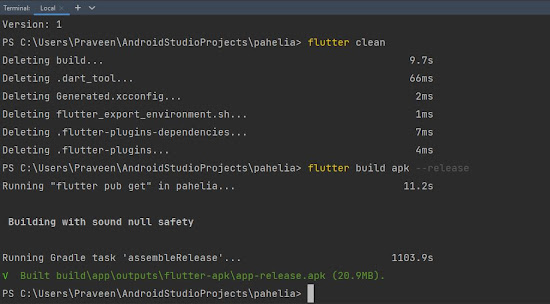
  When you’re ready to prepare a  release  version of your app, for example, to  publish to the Google Play Store , this page can help. Before publishing, you might want to put some finishing touches on your app. This page covers the following topics: Create an upload keystore Step 1 Go to  in android studio then Following the  Android Studio key generation steps Running the following at the command line: On Mac/Linux, use the following command:    keytool -genkey -v -keystore ~/upload-keystore.jks -keyalg RSA -keysize 2048 -validity 10000 -alias upload             On Windows, use the following command:                     keytool -genkey -v -keystore c:\Users\Praveen\key.jks -storetype JKS -keyalg RSA -keysize 2048 -validity 10000 -alias key      -----type this command in terminal  Like this Ex----> PS C:\Users\Praveen\AndroidStud...

Privacy Policy

Privacy Policy Effective Date:   TutBot (“we,” “us,” or “our”) values your privacy. This Privacy Policy explains how we collect, use, and protect your personal information when you use our app, TutBot - Online Courses . Information We Collect Personal Information: When you register or use our services, we may collect your name, email address, phone number, and payment information (if applicable). Usage Data: We collect information on how you use the app, including device information, IP address, operating system, and app activity, to improve your experience. Log Data: In case of app errors, we collect log data like device details and usage times to troubleshoot issues. How We Use Your Information We use your information to: Provide and maintain our services Process your registration and payments Communicate with you, including customer support Analyze app usage to improve features and performance Comply with legal obligations Data Sharing and Disclosur...

Unlocking the Power of OOP: A Beginner's Guide to Objects, Encapsulation, Inheritance, Abstraction, and Polymorphism

Image
 OOPs (Object-Oriented Programming System) This article explains the fundamental concepts of OOP and its most significant advantages What is OOPs (Object Oriented Programming System)? Object-oriented programming System (OOPs) is defined as a programming paradigm (and not a specific language) built on the concept of objects, i.e., a set of data contained in fields, and code, indicating procedures – instead of the usual logic-based system. Key Concepts of OOP To understand and use object-oriented programming, it is necessary to know the following key concepts : 1. Class A class is a blueprint or template of an object. It is a user-defined data type. We define variables, constants, member functions, and other functionality inside a class. it binds data and functions together in a single unit. It does not consume memory at run time. Note that classes are not considered as a data structure. It is a logical entity. It is the best example of data binding. Note that a class can exist witho...

Search ListView In flutter

  Hello friends, today we will teach you how to search in list and listview. Array List List<Invoices> historyList = [] ; if (response.statusCode == 200 ) { var responseData = json.decode(response.body) ; var orderHistory = responseData[ 'invoices' ] ; for ( var coinJSON in orderHistory) { historyList .add(Invoices.fromJson(coinJSON)) ; items .add(Invoices.fromJson(coinJSON)) ; } print( '----------------> ${ historyList . length } ' ) ; print(responseData) ; setState(() {}) ; } var items = <Invoices>[] ; void filterSearchResults(String query) { List<Invoices> dummySearchList = <Invoices>[] ; dummySearchList.addAll(historyList) ; if (query.isNotEmpty) { List<Invoices> dummyListData = <Invoices>[] ; dummySearchList.forEach((item) { if (item.swiggyOrderId!.contains(query)) { dummyListData.add(item) ; print( "yes" ) ; } }) ; setState(() { items.clea...

Google Authentication in flutter (firebase)

Image
                  In this article, I will show how to set up a  Flutter app  and implement  Google Sign-In  using  Firebase authentication . Come, today we learn to sign in from Google, so first of all we have complete setup of Firebase, read from there in the blog . After that enable google authentication in firebase console After this, the library has to be imported in your project dependencies : flutter : sdk : flutter # The following adds the Cupertino Icons font to your application. # Use with the CupertinoIcons class for iOS style icons. cupertino_icons : ^1.0.2 firebase_auth : ^4.1.2 firebase_core : ^2.2.0 google_sign_in : ^5.4.2 flutter_signin_button : ^2.0.0 Do all this code in your main file import 'package:firebase_auth/firebase_auth.dart' ; import 'package:firebase_core/firebase_core.dart' ; import 'package:flutter/material.dart' ; import 'package:flutter_signin_button/button_...